Quick Answer
|
In a recent hands-on AI workshop, I asked everyone who uses ChatGPT every day to show me how they’d start the task they repeat most often. 13 out of 20 opened a brand-new chat and typed out the whole brief from memory, and most of them admitted they’d done exactly the same thing the week before.
Most people who use ChatGPT every day aren’t short of prompting skill. What they’re missing is a setup. Every new chat starts blank, so the goal, the source files and the standard you care about stay in your head. You re-explain the task, get a draft, correct it, and then do the same thing again next week.
This article is for people already stuck in that loop. I’ll explain what ChatGPT agent is, walk through the Goal, Context, Plan method we teach in OOm Institute’s ChatGPT Work bootcamp, and show one real task before and after.
No coding is needed at any step.
What is ChatGPT Work, and how is it different from regular ChatGPT?
ChatGPT Work is an agent inside ChatGPT that takes on a task with a clear, reviewable outcome, such as a brief, a spreadsheet or a recurring update. Regular ChatGPT, which OpenAI now calls Chat, is still the better choice for quick answers, explanations and short rewrites.
OpenAI describes Work as an agent for longer, multi-step work that ends in a finished deliverable you review. The difference shows up in what you can hand over.
In Chat you ask a question and get an answer. In Work you describe an outcome, and ChatGPT can pull from your files and connected tools, work through several steps, show you its progress, ask you questions along the way and pause for your approval before important actions.
On the web and on mobile, Work runs in the cloud. In the desktop app it can also use files on your computer, but only the ones you give it access to.
💡 If your team uses Claude rather than ChatGPT, Claude Cowork works in a similar way, taking on multi-step tasks using your own files. Our Claude Agentic bootcamp follows the same one-day format of building on your own task, and our guide to Claude vs Code explains when to use each mode.
You’ll need a paid plan to use Work.
We use ChatGPT Plus in the bootcamp, and it’s the minimum we recommend. Pro, Business and Enterprise plans include Work too, but in a company workspace your admin decides who gets it.
The quickest check is to look for a Chat and Work switch at the top of ChatGPT.
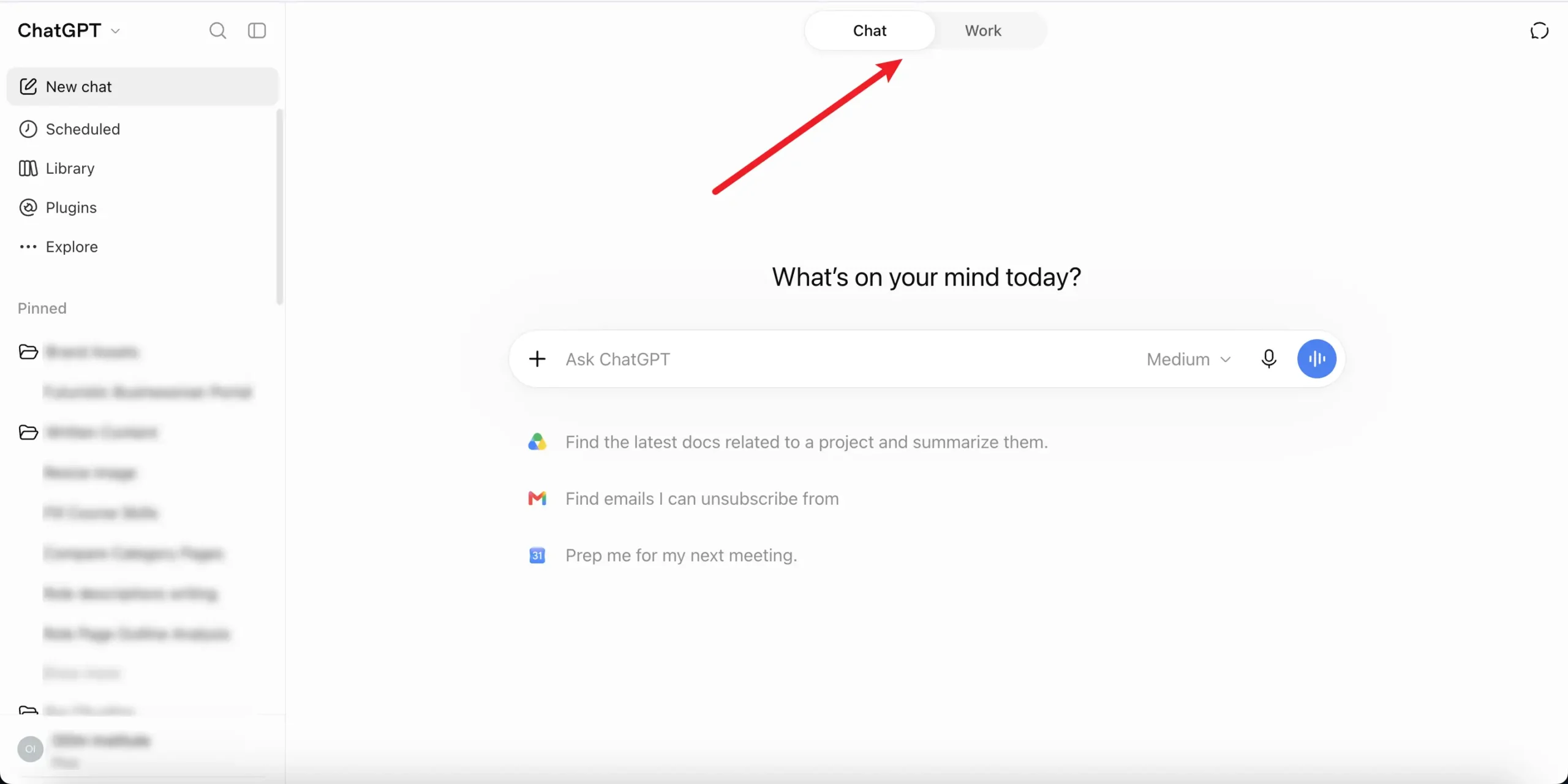
The Chat and Work switch sits at the top of ChatGPT. If you can see it, your plan includes ChatGPT Work.
Here’s the catch, though.
Switching to Work doesn’t end the re-explaining loop on its own. If the task is vague, Work produces a longer, more polished version of a vague result. What fixes the drafts is how you set the task up, and that’s the job of Goal, Context, Plan.
What is the Goal, Context, Plan method for ChatGPT Work?
Goal, Context, Plan is the three-step sequence we teach in OOm Institute’s ChatGPT Work bootcamp. You define the finished output and who reviews it, organise the sources and rules ChatGPT needs, then use Plan mode so ChatGPT Work proposes a plan you approve before it starts.
If that sounds familiar, it should.
OpenAI suggests covering the goal, the context, the output and the boundaries for any important task, and it’s worth reading. Where our method differs is the order and what you do with the result. It also echoes our article on why there’s no perfect prompt framework, where good context matters more than the template.
The plan step is where most mistakes get caught while they’re still cheap to fix, and once the goal and context are written down outside the chat, you can reuse them instead of typing them again.
Goal. Describe the finished output, who reads it and who checks it. If someone else couldn’t tell whether the result is done, the goal isn’t clear yet.
Context. Give ChatGPT only what changes the result, such as the source files, one or two good past examples and the rules people usually learn by being corrected.
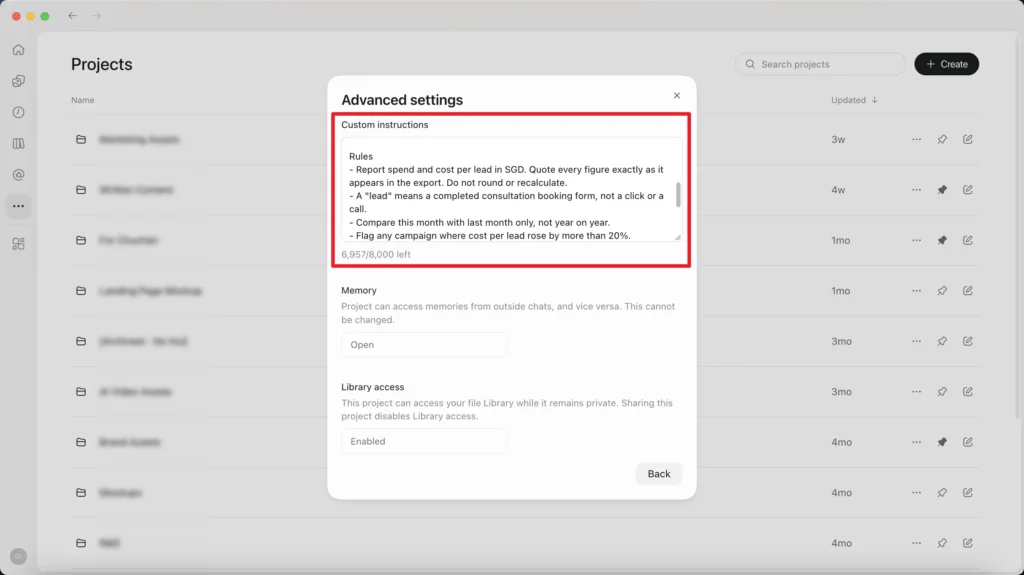
The Context step in practice. Rules are written once in the project’s custom instructions, under Advanced settings, so ChatGPT applies them to every chat in the project.
Plan. Switch to Plan mode so ChatGPT Work lists its steps and sources, then waits for your go-ahead. Check above all that it stops before anything is sent, published or changed.
- Trainer's note
Goal is the finished thing you’d want on your desk by 5pm. Context is everything you’d hand a new colleague before you went on leave. Plan is ChatGPT showing its working before it touches anything.
The step learners skip most often is Context. They write a clear goal, then expect ChatGPT to guess rules they’ve never written down, like which figures can’t change or whose names go in the table.
What does a one-off prompt look like next to a Goal, Context, Plan task?
A one-off prompt asks ChatGPT to “analyse my Meta Ads performance”, while a Goal, Context, Plan task names the output, the reader, the sources, the rules and the point where ChatGPT must stop for your review.
The first gives you a draft to fix. The second gives you something you can send after a quick check, and you can run it again next week with one line.
Take a performance marketer who sends a weekly Meta Ads report to a client. Every Monday the same questions come back. Why did cost per lead jump? Which ad set is burning budget? And why does Meta show far more leads than the client’s CRM ever counted?
Before. The usual one-off approach is to export last week’s data from Ads Manager, paste it into a new chat and type something like this.
“Analyse this Meta Ads data and tell me how the campaigns performed.”
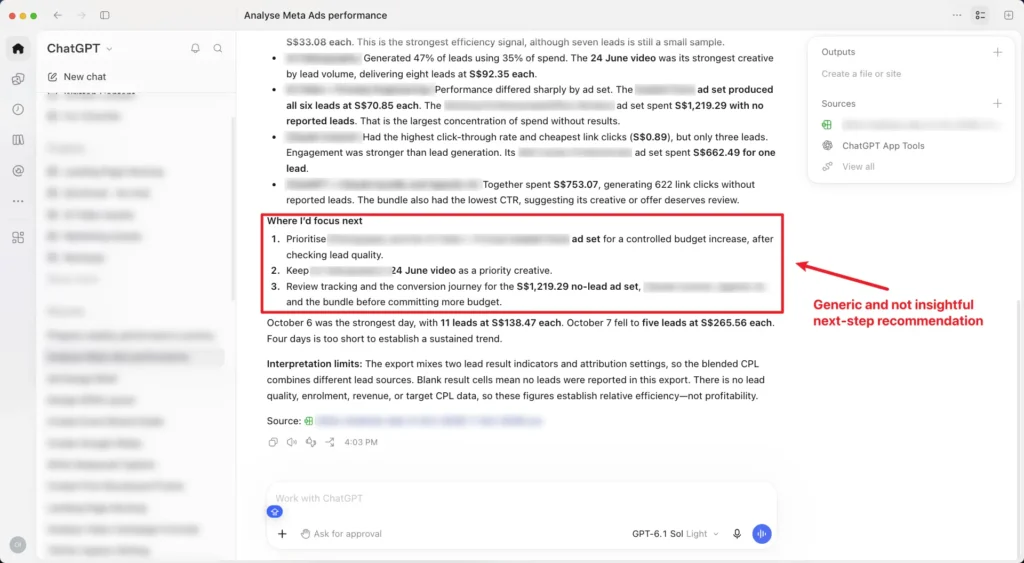
The one-off prompt returned generic next steps that don’t say what to change or why.
After. The same task, set up once inside a ChatGPT project called “Weekly Meta Ads report”. First, the goal is written into the project instructions.
“Prepare a one-page weekly performance summary for the client. Lead with what changed in cost per qualified lead and why. Show the three ad sets that need action, with a recommended next step for each. I will review it before anything is sent.”
Next comes the context.
The project’s Sources hold the account’s naming convention, last week’s approved report and the client’s CRM export of qualified leads, and its instructions add the rules people usually learn the hard way.
“Use the 7-day click, 1-day view attribution setting for every Meta figure, and never mix it with other windows. A qualified lead is one the CRM marks as qualified, not a Meta form submission. Report spend in SGD. Ignore ad sets still in the learning phase. Flag any ad set with frequency above 3, or a click-through rate that fell more than 20% week on week, as possible creative fatigue. If a number is missing, write TBC. Never estimate it.”
Finally, turn on Plan mode for the first run, and add this so ChatGPT Work knows where to stop.
“Before you start, list the steps you will take and the files you will use, then wait for my go-ahead. Stop once the draft is ready. Don’t send anything.”
From the second week onwards, the prompt shrinks to this.
“This week’s Ads Manager export and CRM file are attached. Run the weekly report.”
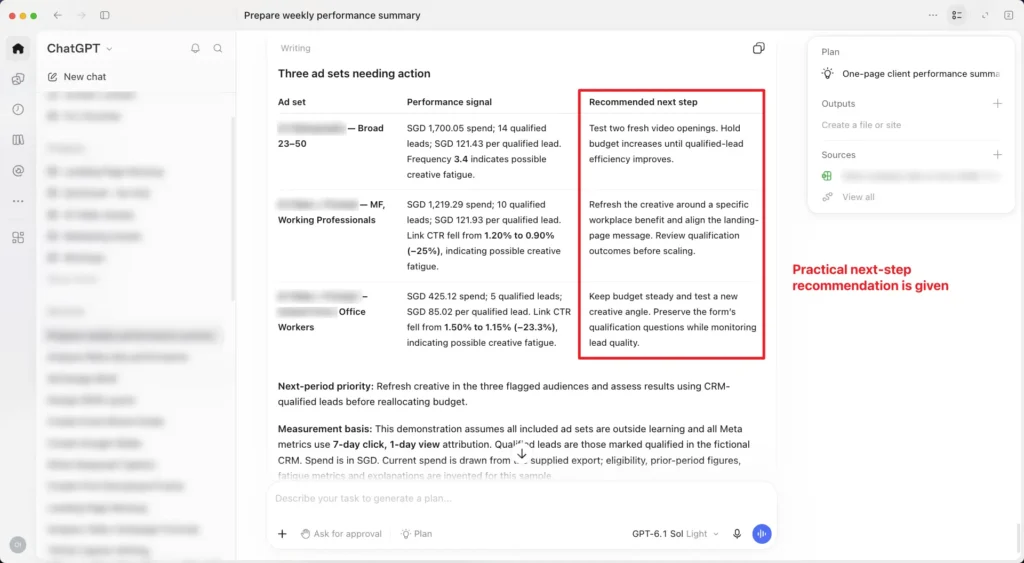
With the project rules and Plan mode in place, ChatGPT Work flags creative fatigue against the set thresholds and gives a specific next step for each ad set.
The setup takes longer the first time, and that’s the point. Most of the effort moves out of the weekly prompt and into the project, where it stays.
How do you make ChatGPT Work remember your rules between tasks?
Write down the things that never change once, in a place ChatGPT checks every time. Then each new task only needs what’s new this week.
There are three places to put them, depending on how widely the rule applies.
| If the rule is about | Put it in | Example |
| How you like every answer | Custom instructions (Settings, then Personalisation) | Use UK English and lead with the answer |
| One client or area of work | A project, in its instructions and files | Attribution rules, naming convention, last week’s report |
| A task you repeat step by step | A skill | The weekly Meta Ads report format |
Desktop app users can also keep these rules in an AGENTS.md file inside a local folder, but you don’t need to.
- Trainer's note
Always add a line that tells ChatGPT where to stop, such as “draft only, don’t send or publish anything” or “if a number is missing, write TBC instead of guessing”.
You don’t need a long list of rules. Just cover the mistakes that would cause real problems, which is also what OpenAI’s own prompting guide recommends.
What happened to custom GPTs?
OpenAI is moving custom GPTs to plugins and plans to retire custom GPTs. When a GPT is migrated, its instructions become a skill and its knowledge files come along with it. So if you’ve been searching for “custom GPTs for work” or “prompt templates”, Skills are now the place to build them.
If your team already relies on a custom GPT, ask your workspace admin about migrating it rather than building a new one.
None of this needs code. You create a skill by describing the workflow to ChatGPT using its built-in skill-creator, then you review the draft and test it on a real request.
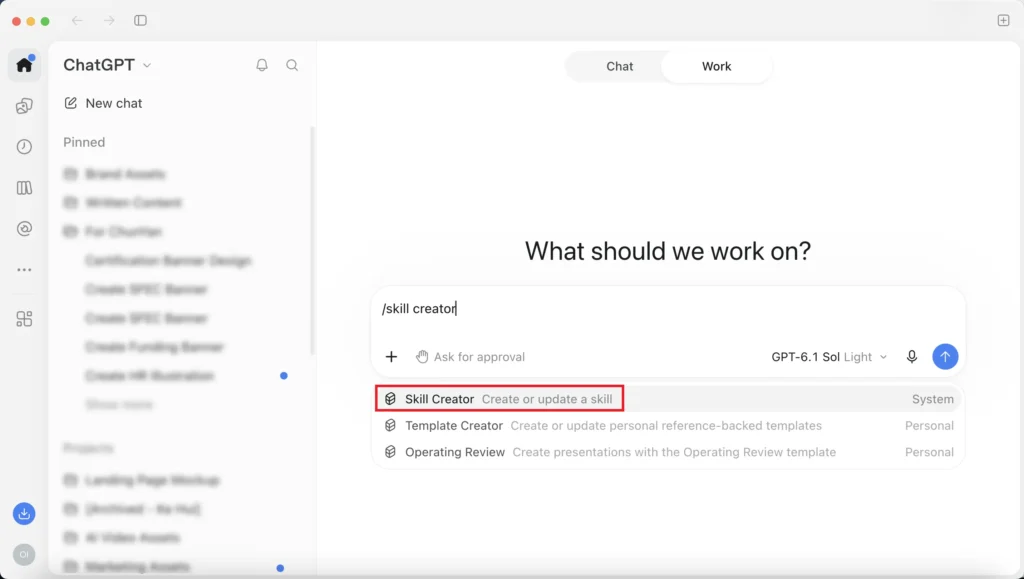
Type /skill creator in ChatGPT Work and choose Skill Creator to turn a task you repeat into a reusable skill, no coding needed
How do you test a workflow before you rely on it?
Run it on one real task and one harder week, such as a week with a paused campaign or missing CRM rows. Keep the workflow only if it needs fewer corrections than doing the task yourself.
Then check the output with four quick questions.
- Did it use only the sources you gave it?
- Can you trace every figure back to the export?
- Did it stop where you told it to?
- Could your reviewer use it as it stands?
When the answer is no, fix the instructions, not the draft.
It also helps to decide how much checking each output needs. A weekly report needs a second look, while anything with budgets or staff data should always be signed off by a person.
In class, the figure check fails most often. ChatGPT blends two lead types into one cost per lead, and nobody notices until the numbers don’t match the export. The fix is one line in the instructions, saying which column each number must come from and asking ChatGPT to show it beside every figure.
What can ChatGPT Work do on its own, and what still needs you?
ChatGPT Work can gather your sources, follow a plan you approved, create files and repeat a task on a schedule. It can’t know rules nobody wrote down, decide what information is safe to share, or take responsibility for what goes out under your name.
That changes your role more than your workload.
You spend less time producing the first version and more time setting rules and reviewing. ChatGPT Work is designed for this, because it asks for your approval before important actions and lets you change direction while it’s working.
The risk is that polished output is easy to trust. A neat table built on the wrong attribution window looks just as finished as a correct one.
So keep your review boundary in place even after the workflow has run well for a few weeks, and follow your company’s rules on what information can go into ChatGPT at all. Our guide on what to automate with agentic AI, and what to keep human-led goes deeper on where to put that checkpoint.
What kinds of work suit Goal, Context, Plan?
Most office work that suits ChatGPT Work falls into three patterns, and every team does some of each, whether you sit in admin, HR, finance or marketing. The method stays the same. What changes is the one rule that keeps the output usable.
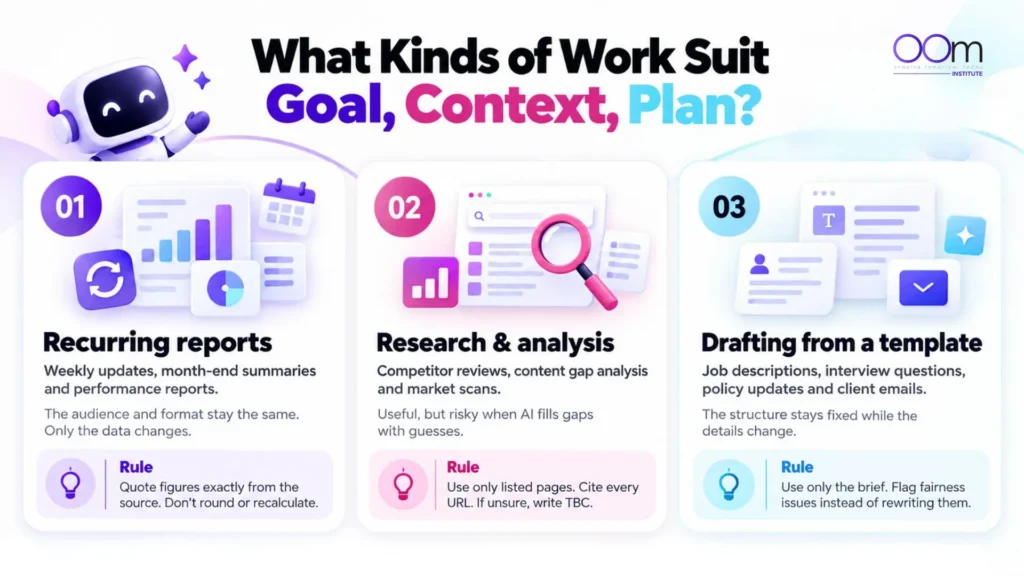
01. Recurring reports
Weekly updates, month-end summaries and performance reports.
The data changes each time, but the format and the reader stay the same. Finance staff use this pattern for variance commentary, admin staff for weekly operations updates, and marketers for the Meta Ads report above.
The rule that makes it work. “Quote every figure exactly as it appears in the source. Don’t round or recalculate.”
02. Research and analysis
Competitor analysis, content gap analysis and market scans.
This is where ChatGPT is most tempting and most risky, because it fills gaps with confident guesses about competitors’ features, prices and traffic.
The rules that make it work. “Only use the pages listed and cite the URL for every claim. Keep what you saw separate from what you recommend. Never estimate traffic or rankings. Write TBC instead.”
03 Drafting from a template
Job descriptions, interview questions, policy updates and client emails.
The structure is fixed and only the details change. HR teams use this pattern to turn a hiring manager’s brief into a job description in the company’s format.
The rule that makes it work. “Use only the requirements in the brief. Flag anything that may not meet our fair hiring guidelines instead of rewriting it.”
Whatever your role, start with one task you already do every week, so you can compare the result with your own past work.
How do you spot recurring work worth automating?
Automate a task when it repeats on a predictable schedule or trigger, uses the same sources each time, and has already passed your test. Keep the review step even after the task runs on its own.
Before scheduling anything, ask four questions.
- Does it happen on a regular schedule, or after a predictable event like a new email?
- Does it take long enough to be worth the setup?
- Are the inputs always in the same place and format?
- And if it goes wrong, will someone catch it before it causes harm?
A task that passes all four is a good candidate. OpenAI’s own advice matches this. Refine the prompt in a normal chat first, and only schedule it once the output is reliable. If the task has to move data between several apps, a dedicated AI workflow automation tool may suit it better than a scheduled task.
ChatGPT Work’s scheduled tasks can run once, repeat on a schedule or watch for changes. On eligible plans they can also start when something happens in a connected app, such as a new Gmail message, although that option isn’t available on Free or Go plans.
For the weekly Meta Ads report, a sensible scheduled version still ends with “send me the draft before sharing it”.
In class, one learner wanted the weekly Meta Ads report emailed straight to the client every Monday. It passed the first three questions easily. It failed the last one.
If the CRM export came in late or with missing rows, the client would receive the wrong numbers before anyone noticed. So the task stayed scheduled, but the final step changed from “send to the client” to “send the draft to me”.
The repetitive part runs on its own, and a person still checks the numbers before they go out.
💡 If you lead a team and want to work out which workflows across the whole team could be handed to AI agents, not just your own reports, our Agentic AI course covers mapping a workflow, choosing the right tools and writing responsible AI guidelines for your organisation.
What should your first 30 days look like?
By the end of your first 30 days, aim to have four things in place. One workflow to refine, one workstream to add, one colleague to show, and one task to stop doing manually.
Each step builds on the one before it.
- One workflow to refine. Use the workflow you built on live work for two weeks. Every time you correct the output, turn that correction into a rule in the project instructions, so you never make the same fix twice.
- One workstream to add. Pick a second recurring task and set it up with Goal, Context and Plan. If your first workflow was the weekly Meta Ads report, the next could be a monthly competitor and content gap brief.
- One colleague to show. Walk one teammate through your setup and let them run it on their own work. Explaining your rules out loud shows you which ones are vague, and it is how one person’s workflow becomes a team habit.
- One task to stop doing manually. Take a task that passed the four automation questions above and turn it into a scheduled task, with the draft still coming to you for review.
Keep it to these four. Trying to move all your work into ChatGPT in the first month is the quickest way to end up with nothing that runs reliably.
Do you need a course to use this method?
You can start with the steps in this article, but a hands-on course gets you to a working setup much faster.
The hardest part is the first real setup.
Writing rules for your own task is where most of the value sits, and it’s also where it’s hardest to tell which rules are vague until someone else reads them.
OOm Institute’s one-day ChatGPT Work bootcamp gives you a full day of build time on your own task, feedback from a trainer as you go, and ready-made templates, so you leave with a workflow that already works rather than one you still have to fix.
There’s no coding involved.
Frequently Asked Questions
Do I need to know how to code to use ChatGPT Work this way?
No. Everything in this article is done by writing instructions in plain English and choosing settings inside ChatGPT. The bootcamp involves no coding either. OpenAI’s coding tool, Codex, is mentioned in class only so you know what it is.
Which ChatGPT plan do I need for ChatGPT Work?
You need at least ChatGPT Plus. Pro, Business and Enterprise plans include Work as well, but if you use ChatGPT through your company, your workspace admin controls who can use it. If you can see a Chat and Work switch at the top of ChatGPT, you have it.
Are custom GPTs still worth building?
Not for new work. OpenAI is moving custom GPTs to plugins and plans to retire them, so build a skill instead. If your team depends on an existing GPT, ask your workspace admin about migrating it.
Is Goal, Context, Plan the same as prompt engineering?
Prompting is part of it, but Goal, Context, Plan covers what happens before and after the prompt. That means writing down the goal and rules once, approving a plan before ChatGPT starts, and testing the result before you reuse it.
Can I use SkillsFuture Credit for the ChatGPT Work bootcamp?
No. It’s a non-WSQ programme, so it isn’t eligible for SkillsFuture Credit or government subsidies. The full fee is SGD 650 per participant before GST.
Is there a similar bootcamp for Claude users?
Yes. The Claude Agentic bootcamp follows the same one-day, hands-on format, using Claude Cowork instead of ChatGPT Work. You’ll need a Claude Pro subscription and the Claude desktop app.